
LIFT HAND CONTROLLER MANUAL
SAFETY INFORMATION
- Read the Lift Hand Controller User Manual before attempting to operate the hand controller.
- Limit exposure of this hand controller to food oils, skin lotions, and lubricants.
- Do not attempt to open the hand controller.
- Avoiding interference with other Bluetooth devices.
- Do not operate this hand controller on aircraft.
COMPONENTS
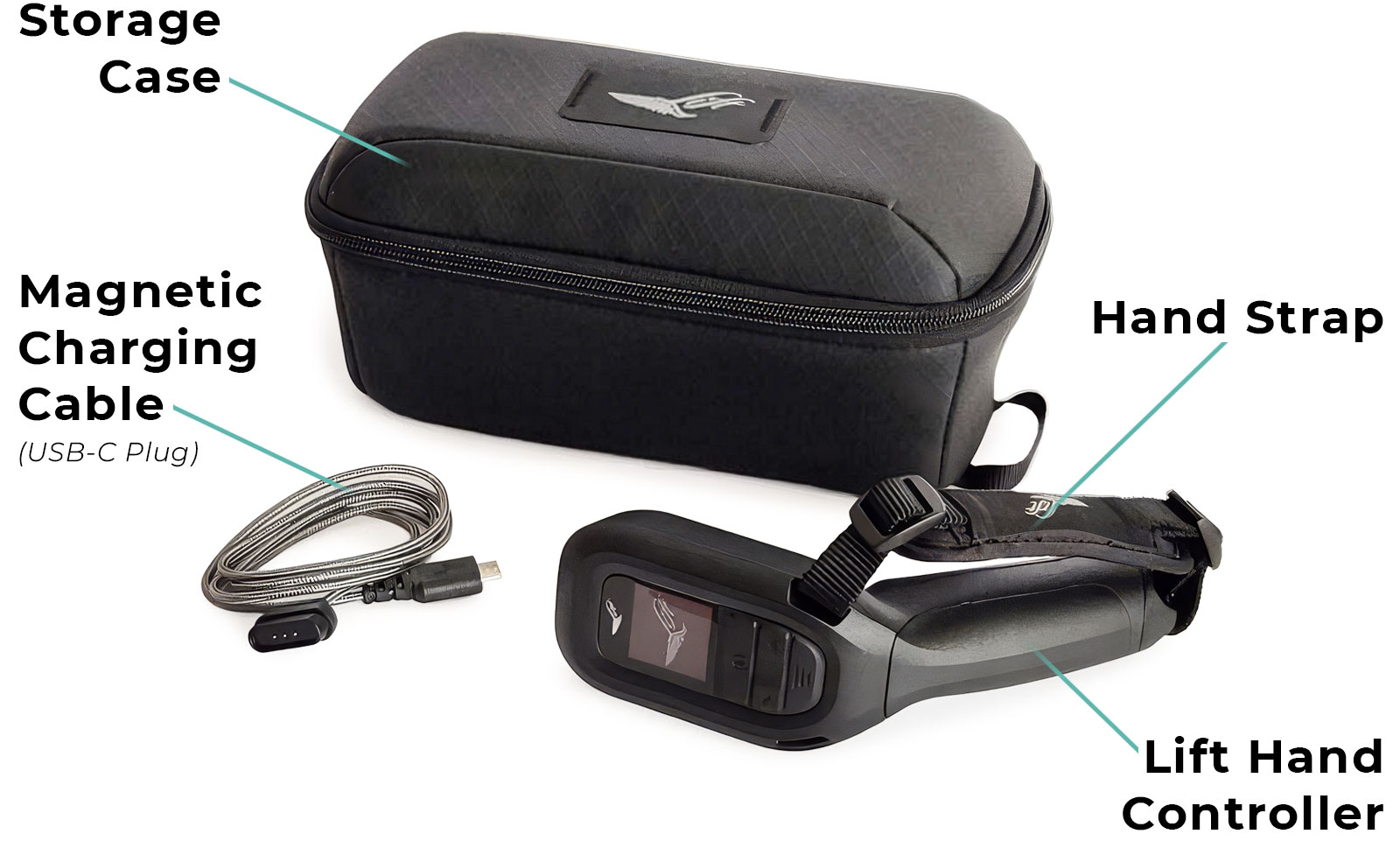
What’s Included:
- Lift Hand Controller (LHC)
- Hand Strap
- Magnetic Charging Cable (with USB-C Plug)
- Storage Case
CONTROLS
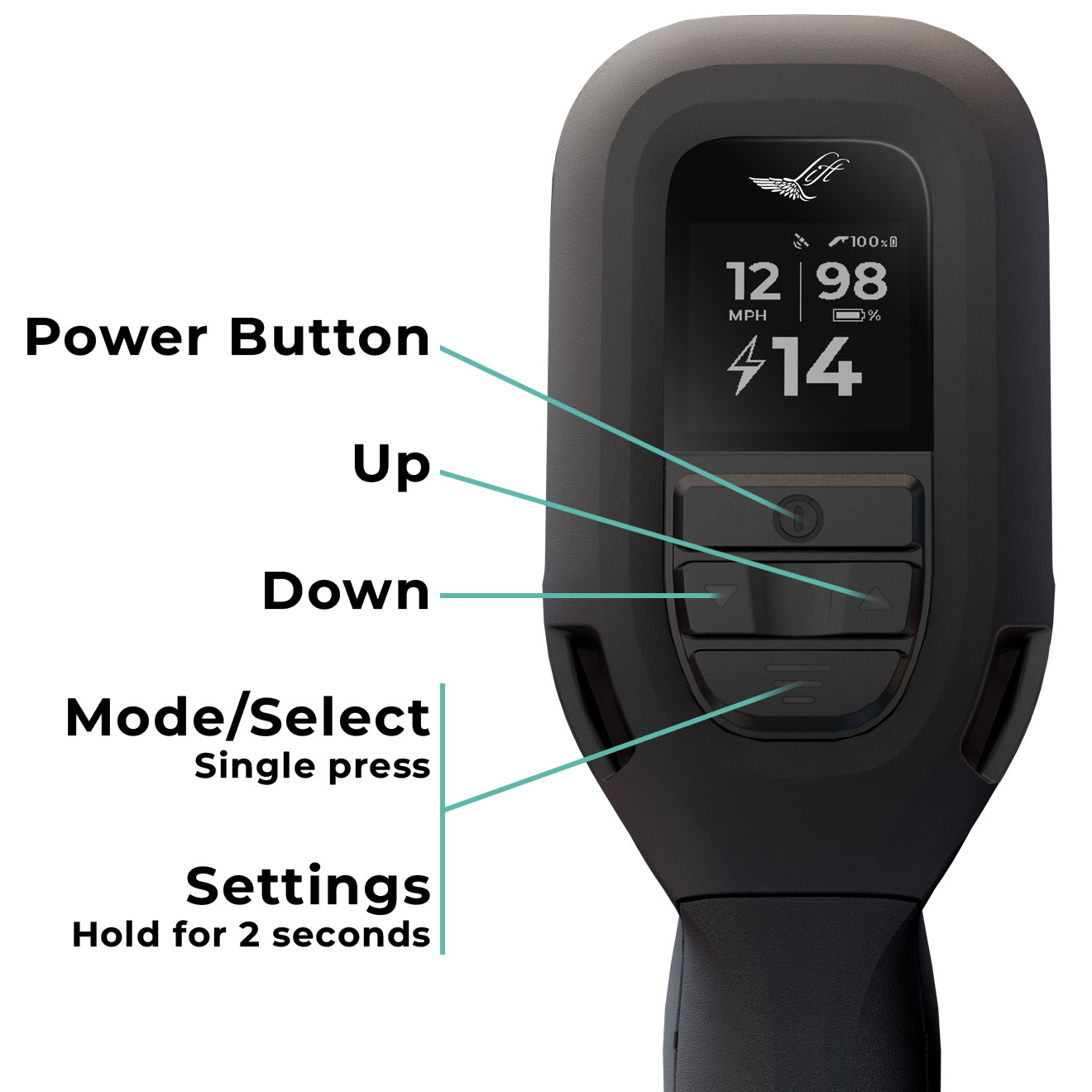
The LHC has a built-in vibration motor that provides vibration alerts. These vibrations are designed to notify the user when certain functions are occurring, or the controller has an important message displayed on the screen.
If the controller vibrates, look at the display immediately for more information.
Vibration alerts are used to support safe operation, especially when riding, operating at speed, in bright light, or in noisy environments.
Vibrations are brief and occur only when the event is first triggered. Vibrations do not repeat continuously and do not require any button press to stop them, but they do require the user to review the display screen and take necessary action.
The LHC user manual explains each status and warning screen: Why the screen (and vibration) triggered as well as the suggested action that should be taken by the user. Review the SCREEN GUIDE section for details.
Vibration alerts are always enabled and cannot be turned off. The LHC does not use audible alerts.
CHARGING
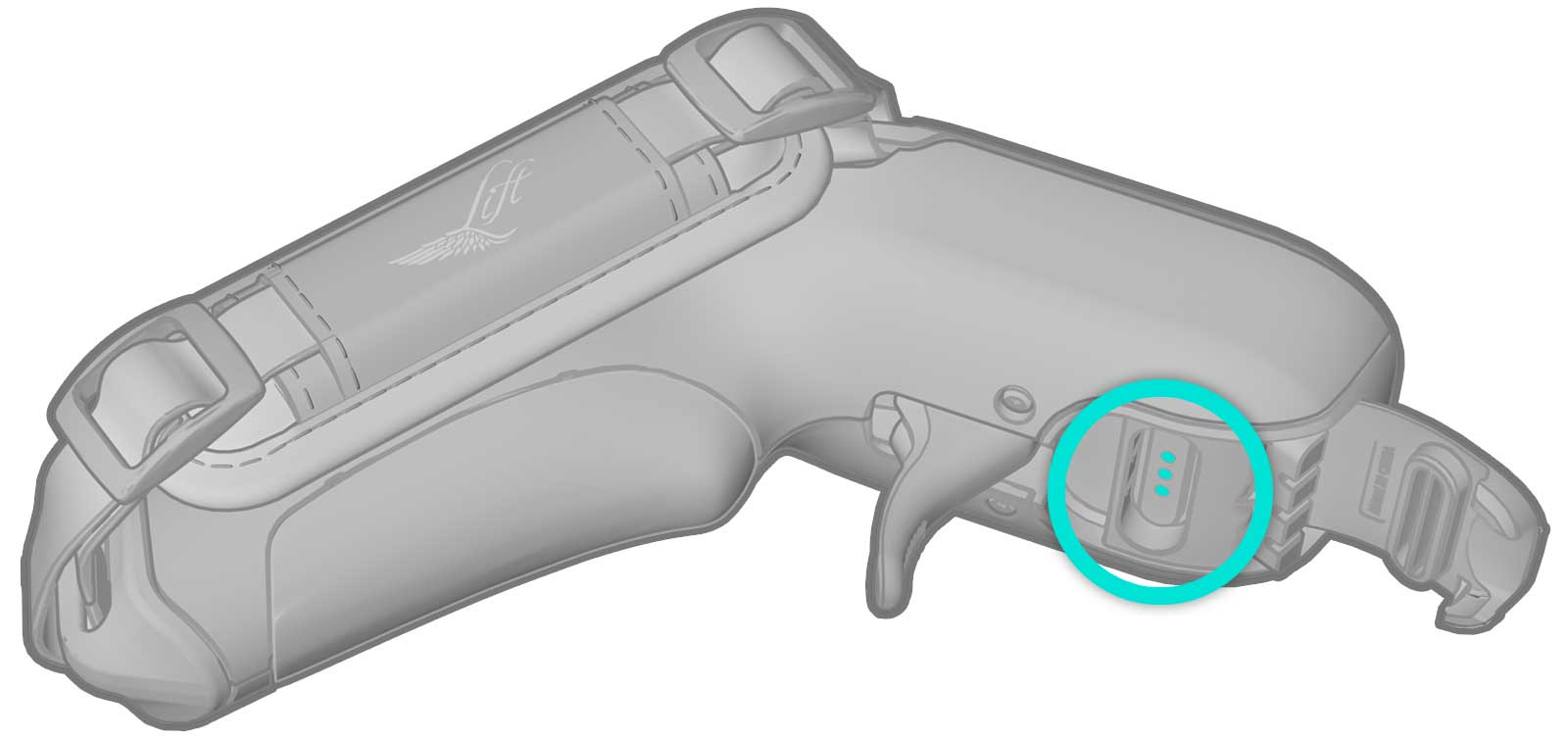
To charge your Lift Hand Controller, use the included charging cable. Gently lift the rubber flap found on the underside of the hand controller above the trigger to expose the charge port. Attach the magnetic end of the cable to the charging pins on the port. Ensure the magnetic charge port is clean and clear of any particles or debris that may prevent the cable from connecting properly. Plug the charging cable into a USB-C power source.
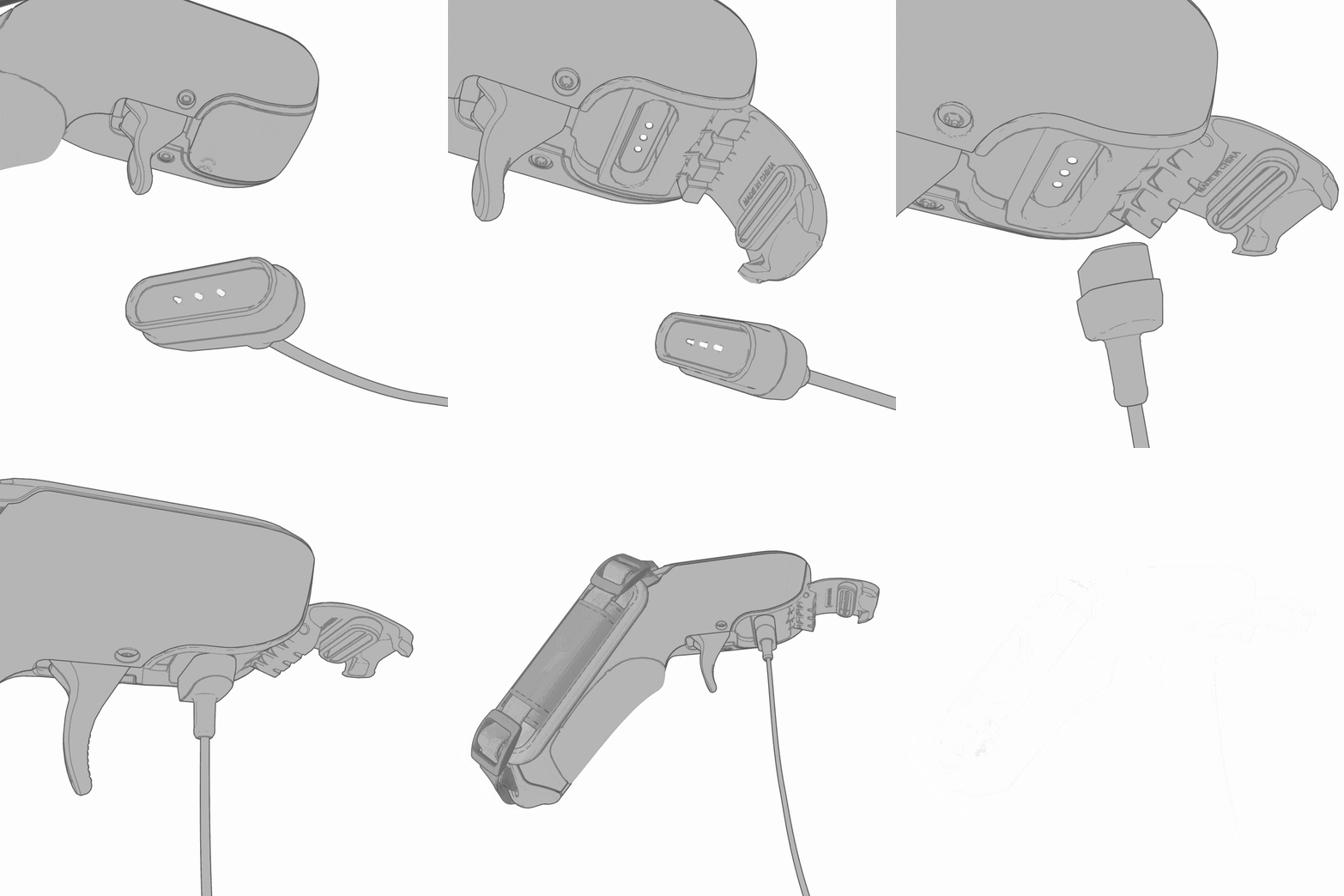
While the hand controller is charging, the green LED above the display screen, next to the Lift logo, will blink. It is recommended to fully charge your hand controller before riding, which can take up to two hours, depending on its starting charge level. A fully charged LHC will last multiple sessions.
NOTE: The hand controller will charge faster if it is turned off during the charging process. When the hand controller battery is fully charged, the green charging LED will remain lit until the charging cable is removed. Charging may take up to four hours to charge to 100% state of charge (SOC).
POWERING ON
Once your LHC is fully charged, turn it on by pressing and holding the power button. The hand controller will vibrate two times, and the Lift logo will appear on the screen during power up.

COMPATIBILITY: LHCs are compatible with all Lift eFoil generations and models.
NOTE: The hand controller will turn off after three minutes of inactivity.
UPDATING FIRMWARE

IMPORTANT: The Lift Foils app is required to update the firmware on your Lift Hand Controller (and other eFoil components)
Prior to using your EHC, download the Lift Foils app onto your mobile device. The app provides easy, step-by-step instructions to connect to and update to the latest firmware.

Within the Lift Foils app, tap CONNECT GEAR to connect to your Lift Hand Controller to the app. Follow the step-by-step instructions within the app to connect and update your LHC. Once the hand controller is connected, the app will automatically check and update the hand controller’s firmware as needed.

Once you have navigated to and selected the Update menu item within the Settings menu on your LHC, select Yes to allow the hand controller to enter update mode.
Power on your LHC. Press and hold the Select button for 3 seconds to display the Settings menu. Press the Down arrow button to navigate to the Update icon. Press the Select button on the LHC, and then you must confirm proceeding to the update by selecting Yes.
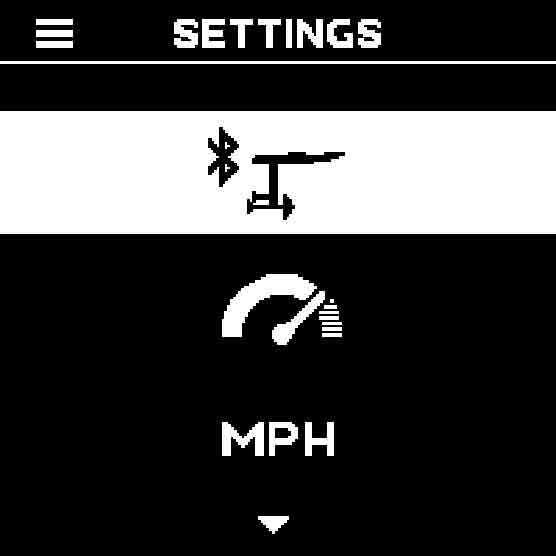
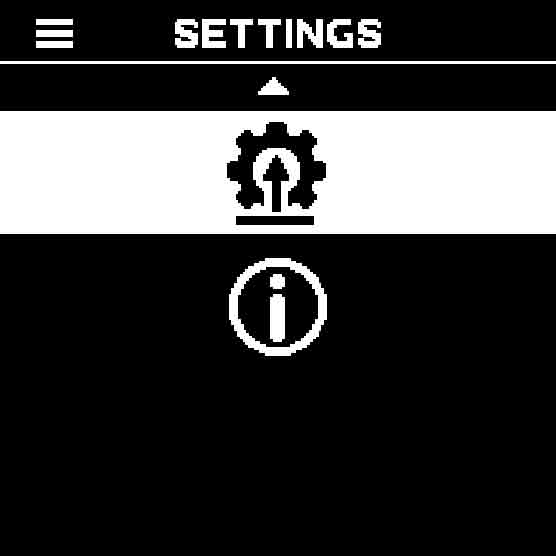
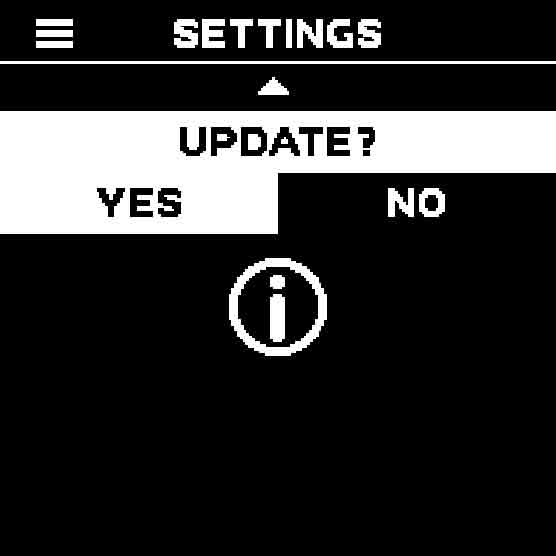
When the LHC displays a spinning propeller, it is open to receive an update from the app from your smart device. In general, these types of updates take several minutes to complete. Once the update is complete, the LHC may automatically power down. Simply power back on and continue use.
IMPORTANT: While it is performing a firmware update, do not power down the hand controller as it may interrupt the update process.

You can review the current firmware version of your LHC (and other eFoil components) on the About screen, which is accessed through the Settings button.
NOTE: For the LHC to display additional component firmware versions (such as the board, battery, etc.), the LHC must be paired with the eFoil. If the LHC is not paired, this screen will only display the hand controller firmware version.
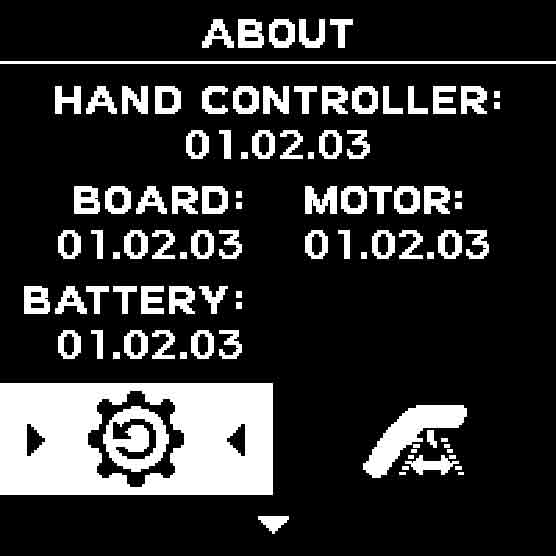
NOTE: The numbers listed in the image above are for example purposes only. More current versions of the firmware may be available, so the numbers on your screen may appear different.
PAIRING THE CONTROLLER TO THE LIFT eFOIL
In order for the LHC to power your eFoil, you need to pair the components via Bluetooth. You will need your LHC and assembled eFoil to complete the pairing process.
CAUTION: Once your battery is installed, board is powered on, and hand controller is paired, the hand controller will operate the propeller. Do not handle the propeller while the battery is connected. Only use the throttle when prepared, clear, and ready. Keep fingers, toes, and body parts clear of the propeller, as contact with the spinning propeller can cause serious injury or death.
The pairing process is the same for a LIFT5 and LIFTX. The pairing process for the LIFT4 (and previous generation Lift eFoils) is different. Both are explained below.
LHC Pairing Process for LIFT5 and LIFTX eFoils:
With the battery installed into the board, power on your eFoil, until you see the blue LED start-up sequence. Four solid blue LEDs indicate the battery and board are connected, and the final LED flashing blue, indicating it’s searching via Bluetooth for the hand controller.

Next, power on the LHC by pressing the Power button for ~1 second. Press and hold the Select button on your LHC for 2 seconds to display the Setting menu. Then select the Board Pairing icon to manually begin the pairing process.
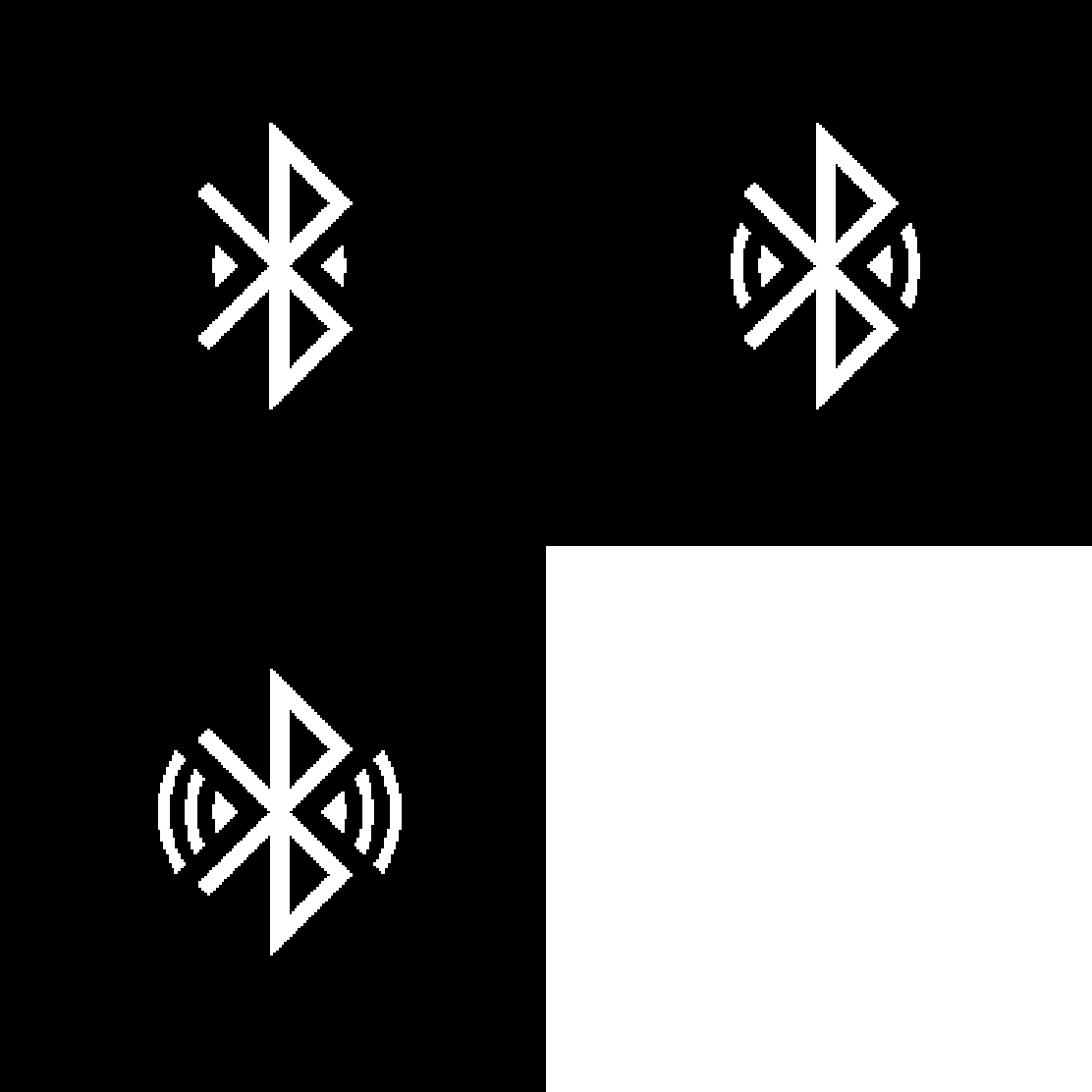
Once the board is powered on and the LHC is in pairing mode, position the controller close to the back of your board. Place it just behind the battery, as shown below, for about 10 seconds to establish a connection between the board and controller.
IMPORTANT: PAIRING IS PROXIMITY-SENSITIVE.
You will notice the final (fifth) LED on your battery flashing faster as the LHC is positioned closer to the correct pairing area on the board.

There are multiple visual indicators to confirm the LHC successfully paired with the eFoil:
- The final (fifth) LED on the battery will be solid blue.

- The Paired with Board screen will be displayed on the LHC screen.
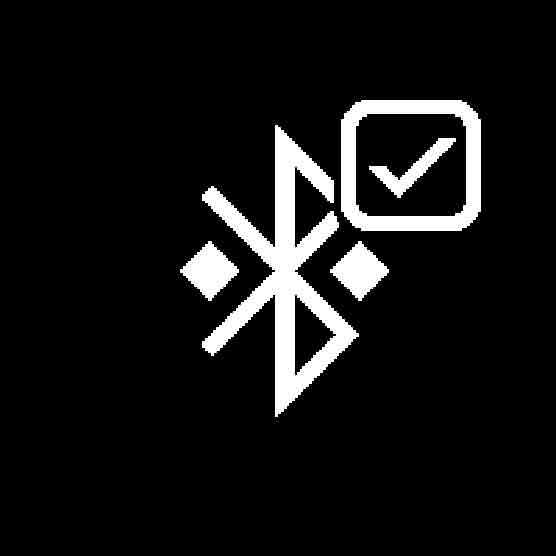
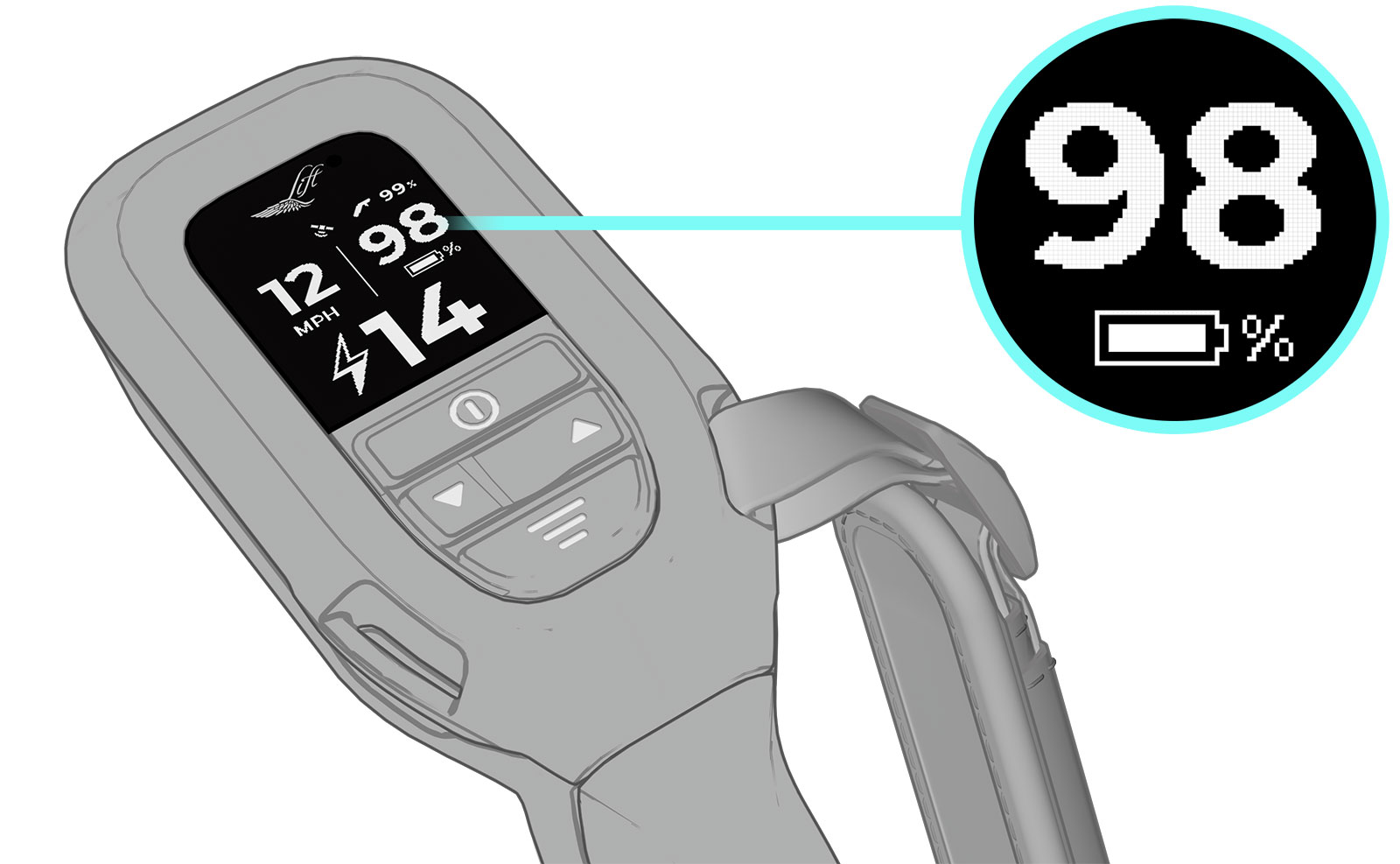
- After receiving the checkmark and successful pairing, the hand controller will change to display Home Screen 1, displaying the eFoil battery’s state of charge in the upper right area of the screen.
LHC Pairing Process for LIFT4 (and previous generation) eFoils:
- Ensure the hand controller and eFoil are both turned off.
- Turn on the eBox by pressing the Power button.
- Place the eBox into pairing mode by pressing and holding the Relay button for three seconds.
- Power on the hand controller. Press and hold the Select button on your LHC for 3 seconds to enter the Settings menu. Select the Board Pairing icon to begin the pairing process. If the pairing is successful, the Paired with Board screen will appear on the LHC, indicating the hand controller is connected to the eFoil.
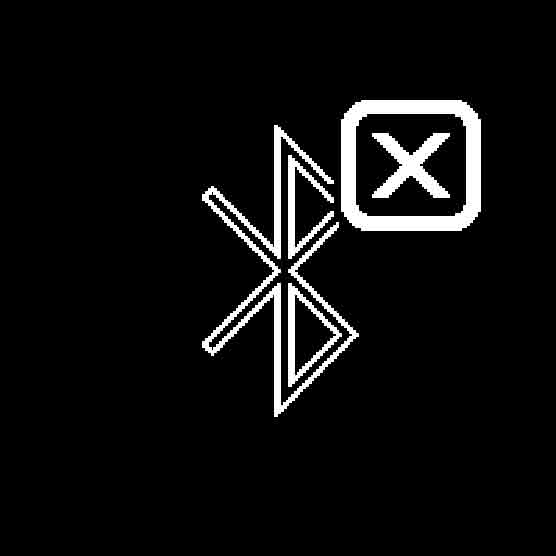
If the pairing attempt was unsuccessful, the LHC will display the Unable to Pair screen. If this screen displays on the LHC, restart the pairing process and try again.
FIRMWARE CHECKPOINT: After successfully pairing your LHC to your eFoil, if the hand controller recognizes your board firmware is out of date, a warning screen will display on the LHC, indicating you need to update your board firmware prior to use. You will not be able to engage the motor/propeller until the board firmware is updated.
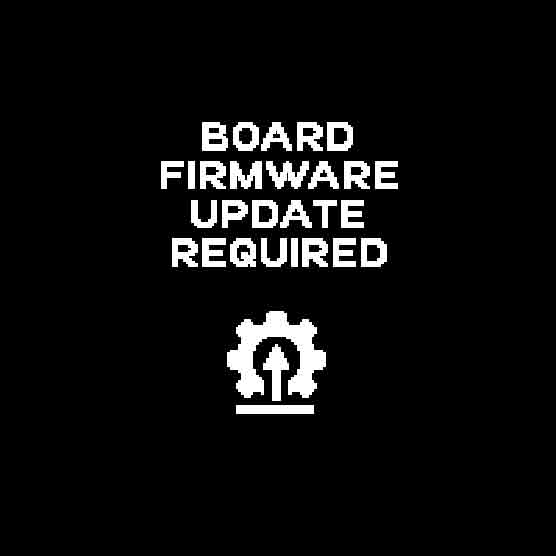
VIBRATION: The LHC will vibrate three times when this screen is triggered.
NOTE: You will not see this screen if your board is running the latest firmware compatible with the LHC.
To perform a board firmware update, open the Lift Foils app, ensure your board is connected (to the app), and follow the step-by-step instructions in the app.
INSTALLING THE HAND STRAP
While you can use the hand controller without it, we strongly recommend installing the hand strap prior to using the hand controller.
It’s best to correctly fit the hand strap to your hand before heading out on the water.
Thread the strap through the upper and lower hand strap anchors found on the right and left side of the hand controller. Choose which side is best depending on whether you are left or right handed.
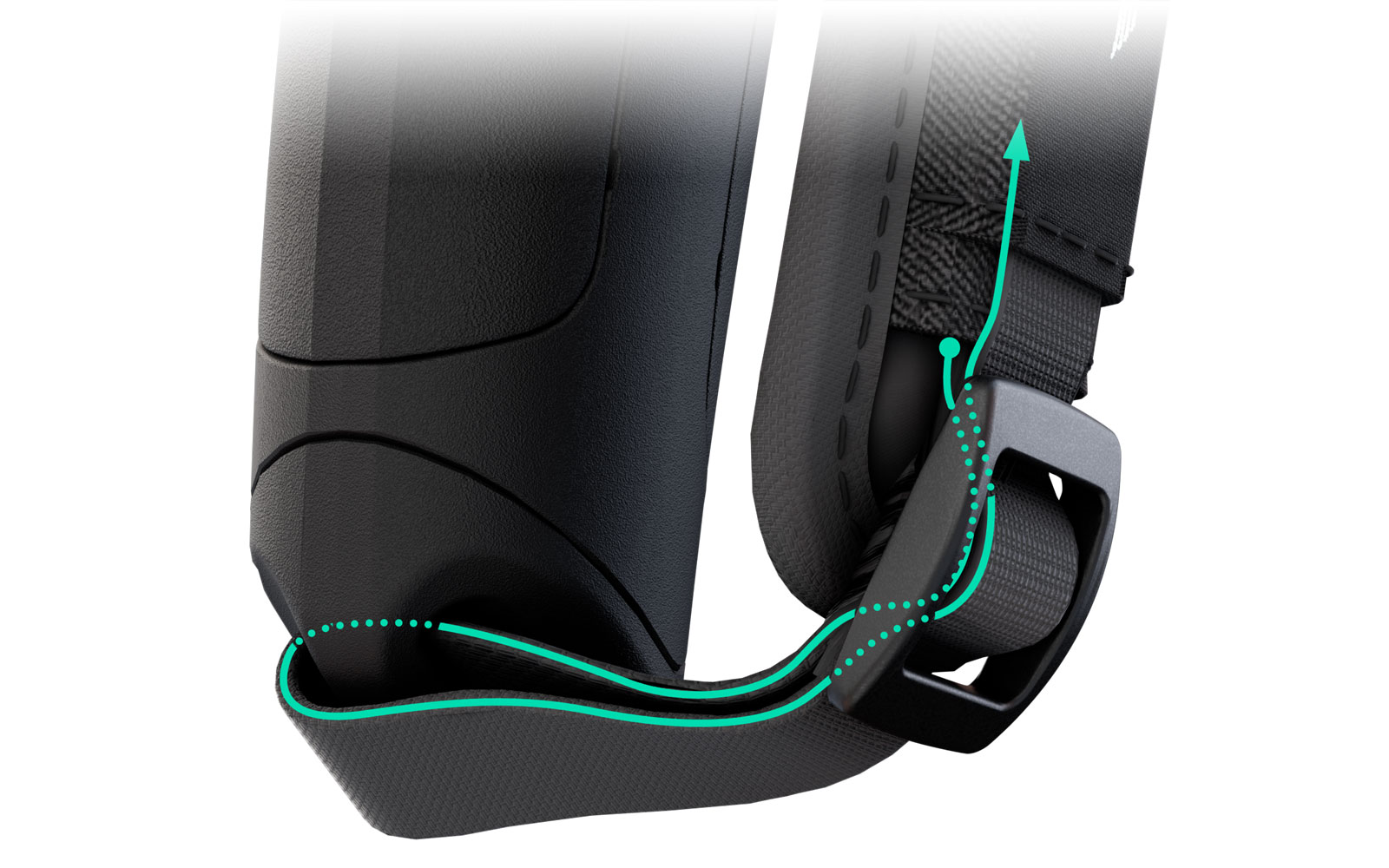
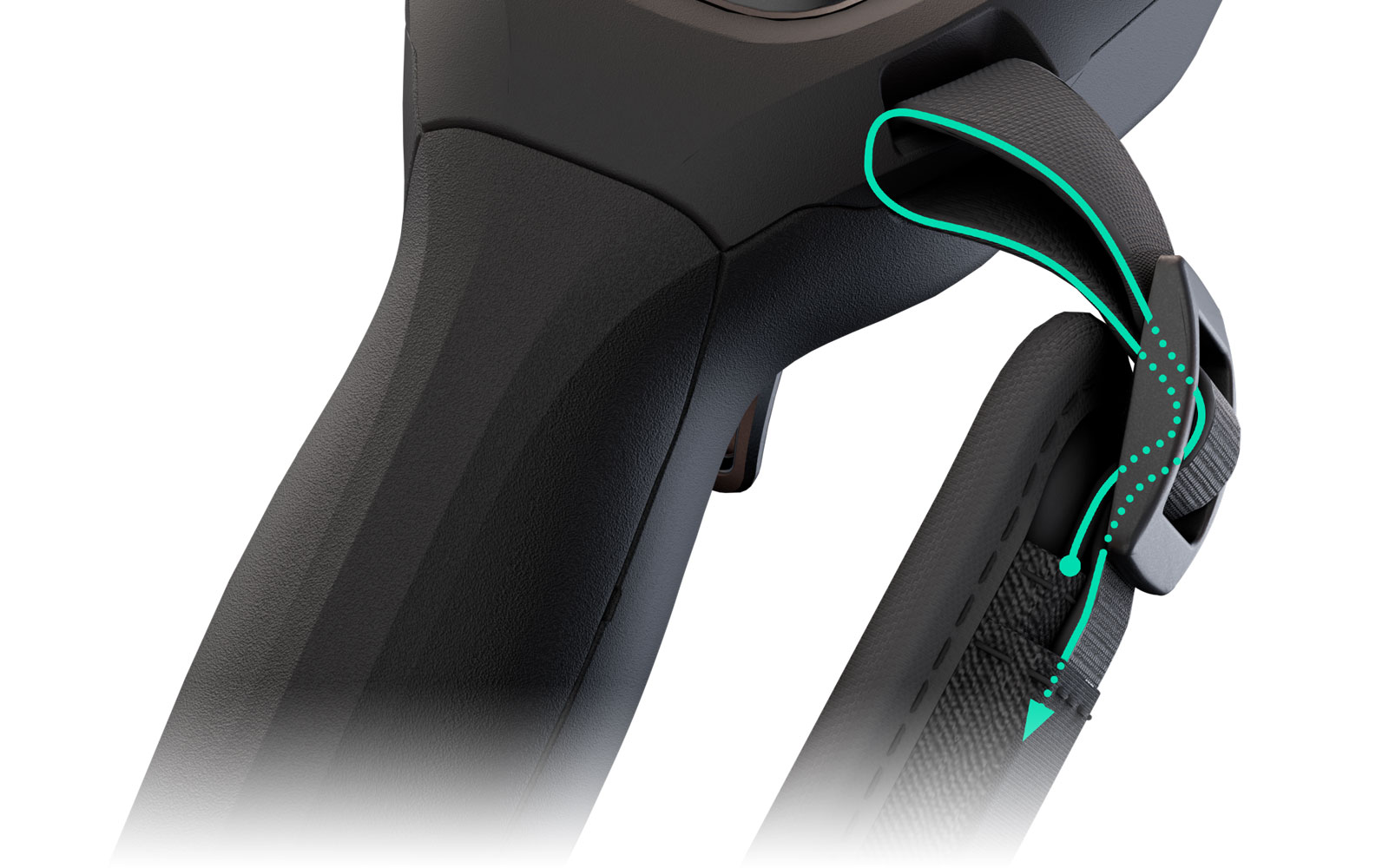
Thread the strap ends through the sliders. Pull the straps through to adjust to the appropriate tightness to best fit your hand. Tuck any loose ends into the pockets of the fabric panel.
HOME SCREENS
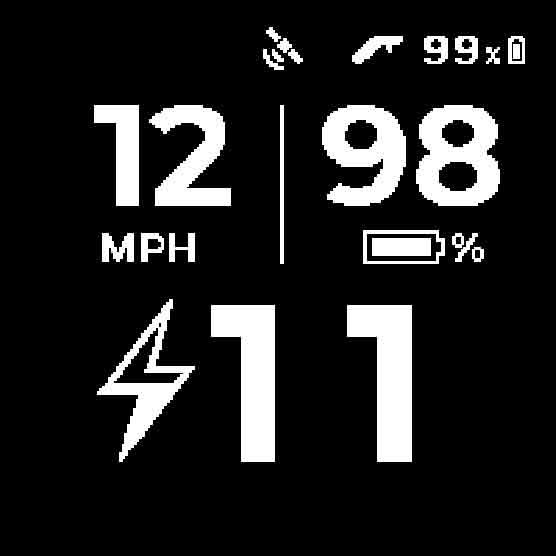
Short press the Select button to toggle between the LHC home screens. Press the Up or Down arrow buttons while displaying Home Screen 1 to change the power level (AKA: governor) of the motor.
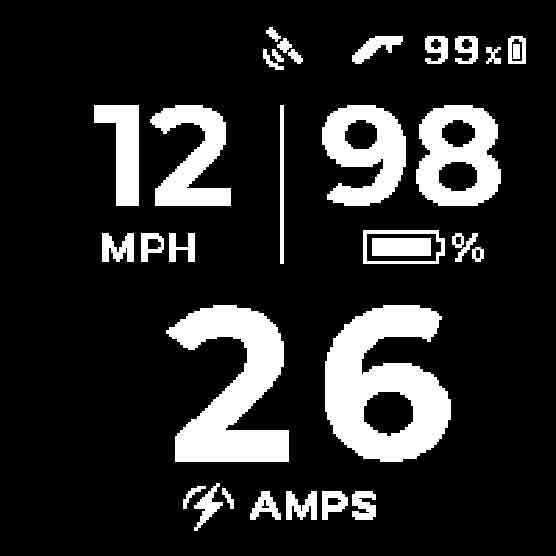
Each version of the home screen will always display the eFoil speed and eFoil battery SOC, which are both shown on the top half of the screen. The different home screens give you the option of the third metric you want displayed: governor setting, amps, distance, or RPM.
NOTE: On initial connection, speed and distance functionality may take up to 20 minutes to function as the GPS signal is acquired. Once a GPS signal is acquired, the GPS icon will appear.
HOME SCREEN 1 – Governor:
HOME SCREEN 2 – Amps:
HOME SCREEN 3 – Distance:
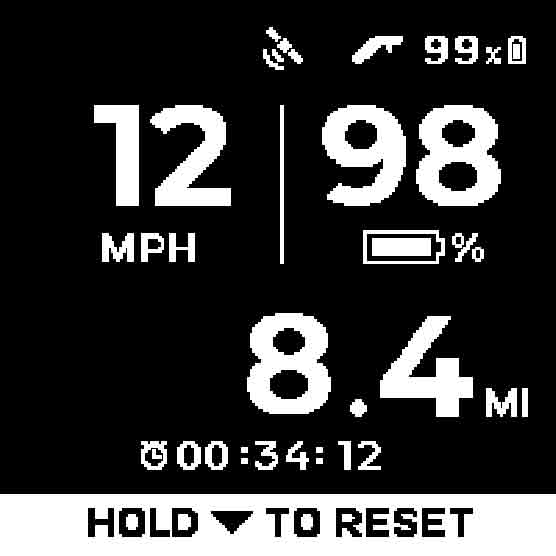
NOTE: While on Home Screens 2 and 3, use the Up and Down arrows to easily adjust the power levels, automatically taking you back to Home Screen 1.
NOTE: While on Home Screen 3, press and hold the Down arrow to reset the ride distance tracker to zero.
HOME SCREEN 4 – RPM:
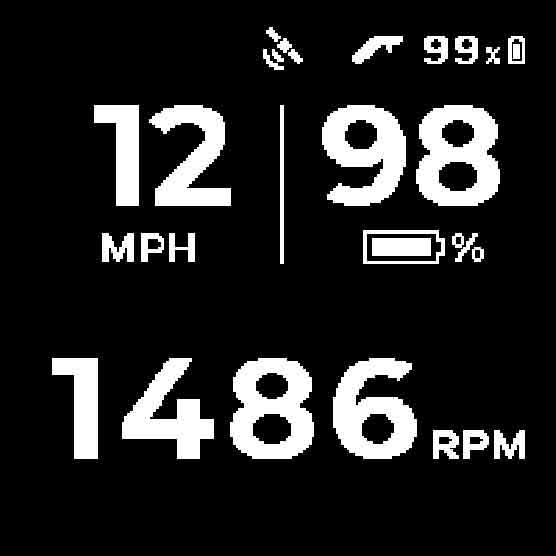
NOTE: Home Screen 4 will only display when the LHC is connected to a LIFT5 or LIFTX eFoil.
SETTINGS
The Settings menu provides access to multiple functions of the LHC. You can easily navigate to this menu by pressing and holding the Select button for 3 seconds.
BOARD PAIRING:
Select to manually begin the pairing process to your eFoil.
AUXILIARY SCREENS:
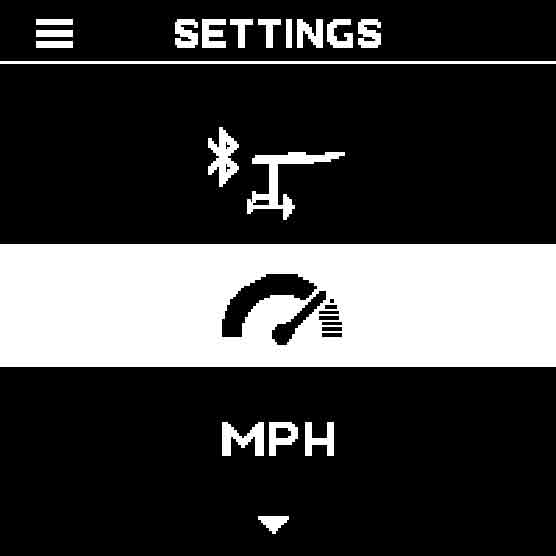
Select to access the auxiliary screens in the LHC. Refer to the AUXILIARY SCREENS section of this user manual for additional details.
CHANGE UNITS:
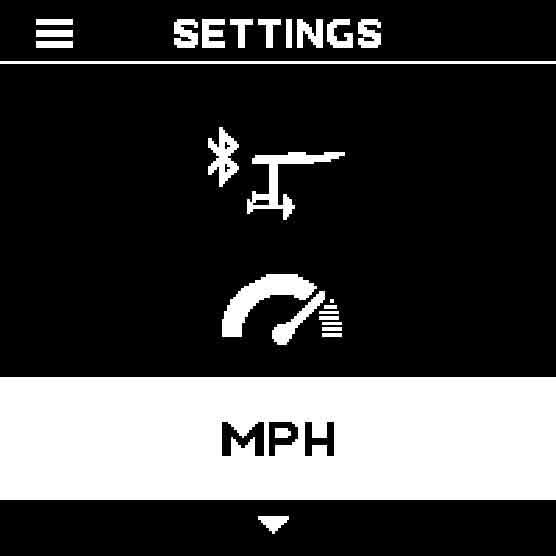
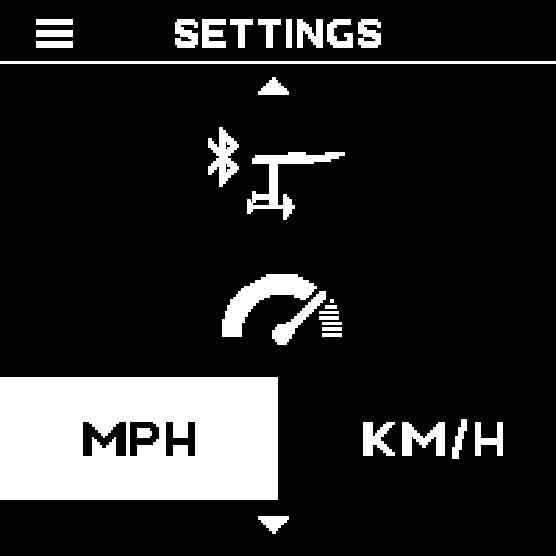
Toggle between metric and imperial units of measurement.
- Miles, MPH, and degrees Fahrenheit
- KM, KM/H, and degrees Celsius
NOTE: Units are set to imperial by default.
UPDATE FIRMWARE:
You must connect the LHC to the Lift Foils app to update the hand controller firmware. Follow the instructions in the app to connect your gear and update firmware. Refer to the UPDATING FIRMWARE section of this user manual for additional details.
ABOUT/INFO:
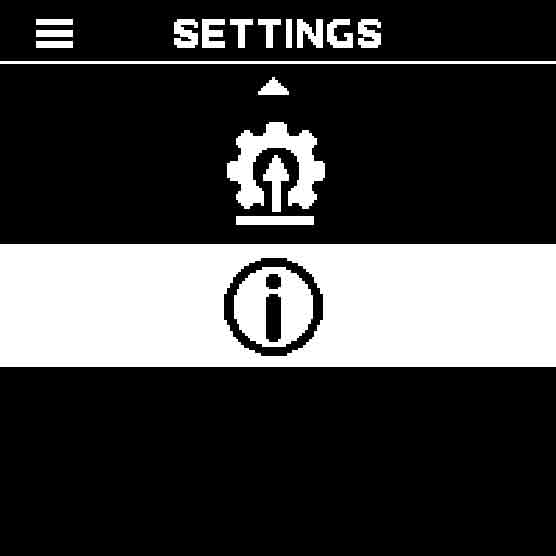
This screen displays the hand controller firmware version and the board, battery and motor firmware versions (if paired). A factory reset and trigger calibration can also be performed from this menu. To perform a reset, please see the FACTORY RESET section of this user guide for details.
A trigger calibration may need to be performed from time to time, most often when working with Lift Customer Support. To perform a trigger calibration, navigate to the Trigger Calibration icon on the About screen, and press the Select button. The LHC screens will then guide you through this simple process.
AUXILIARY SCREENS
While on the Settings screen, scroll to the Auxiliary Screen icon. Use this screen to access board signal strength and review the temperatures of your eFoil components.
AUXILIARY SCREEN 1 – Hand Controller Board Signal Strength:
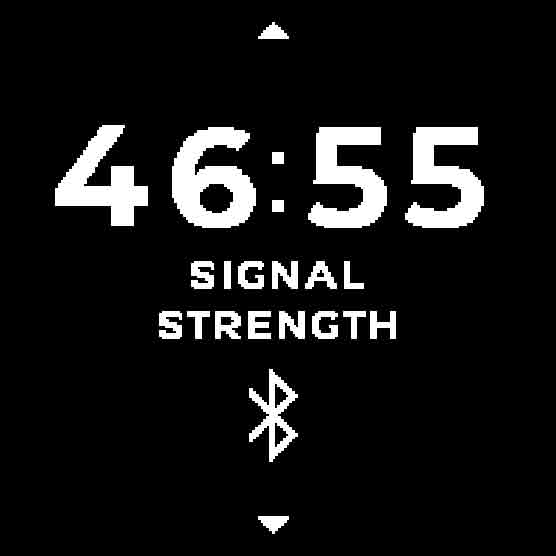
This screen displays the hand controller’s signal strength. The lower the number, the better the signal strength.
NOTE: The numbers will be blank if the hand controller is not connected to a board.
Please contact Lift Customer Support if you have questions specific to signal strength.
AUXILIARY SCREEN 2 – eFoil Component Temperatures:
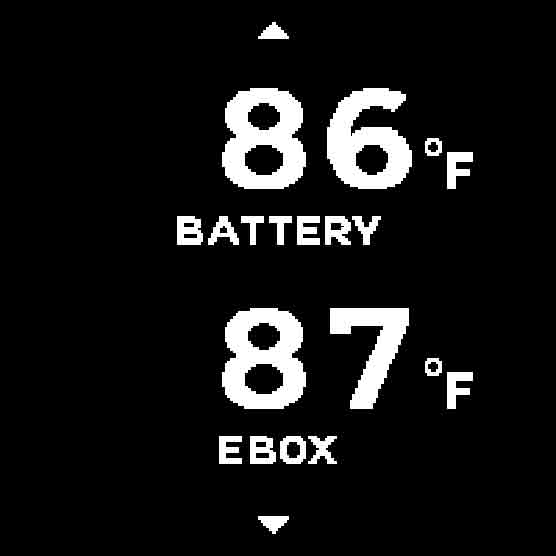
This screen displays the temperatures of several eFoil components.
NOTE: The temperatures will be blank if the hand controller is not connected to a board.
SCREEN GUIDE
Your LHC will display two different categories of informational screens: STATUS SCREENS and WARNING SCREENS.
- STATUS SCREENS provide information about your hardware during normal operation and are designed for your general awareness.
- WARNING SCREENS display critical information about issues with your eFoil hardware. If any WARNING SCREENS appear, discontinue use of your eFoil and address the issue appropriately, referencing the information listed below.
NOTE: When some of these screens are triggered, the LHC will vibrate, indicating the user should review their LHC display immediately for more information.
STATUS SCREENS
START-UP SCREEN:
ATTEMPTING TO PAIR:
Appears when the hand controller is attempting to pair with the eFoil.
PAIRED WITH BOARD:
Appears when the hand controller successfully pairs with the eFoil.
CAUTION: Once your battery is installed, board is powered on, and hand controller is paired, the hand controller will operate the propeller. Do not handle the propeller while the battery is connected. Only use the throttle when prepared, clear, and ready. Keep fingers, toes, and body parts clear of the propeller, as contact with the spinning propeller can cause serious injury or death.
UNABLE TO PAIR:
Appears when the hand controller is unable to pair with the eFoil.
Restart the paring process and try again.
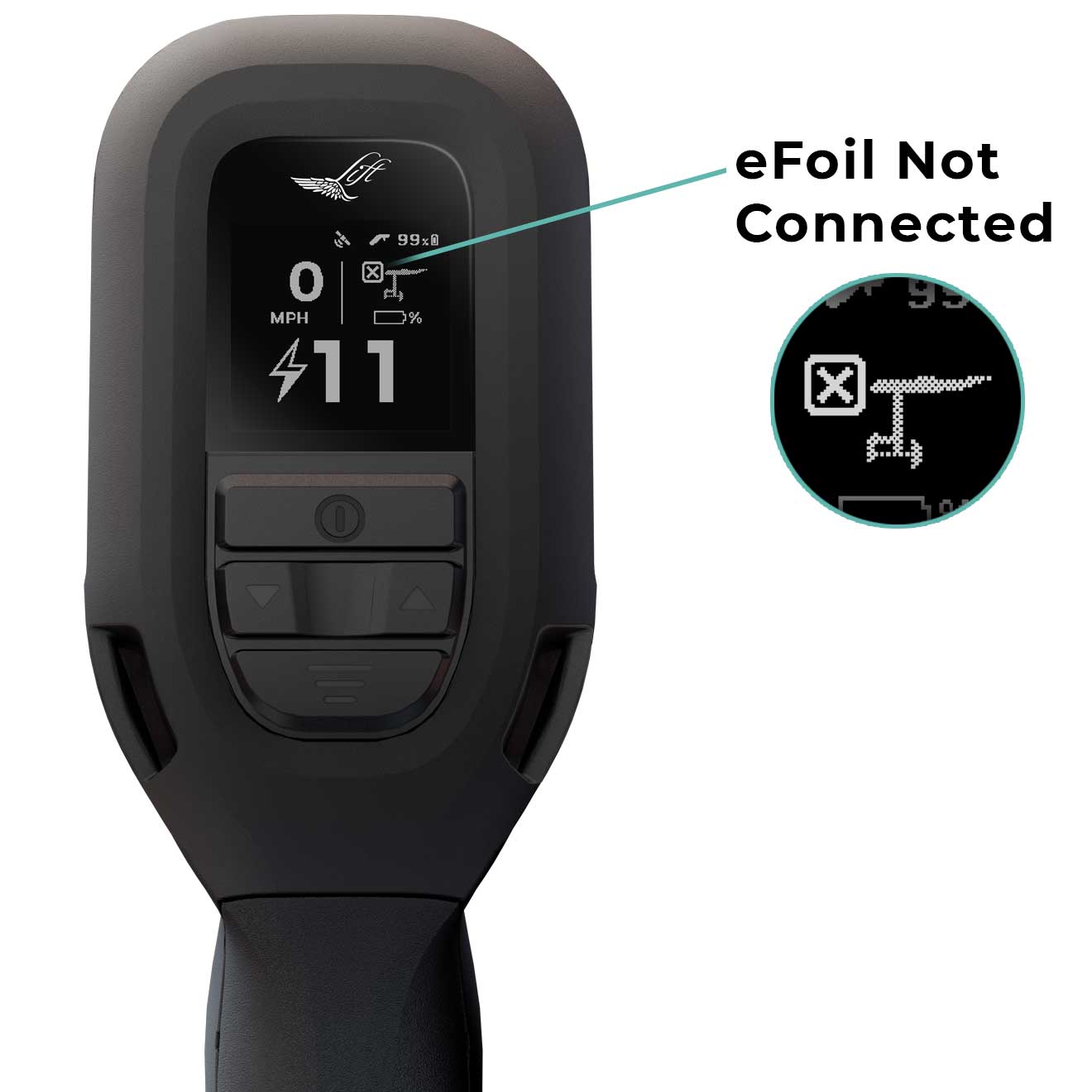
NO EFOIL CONNECTION:
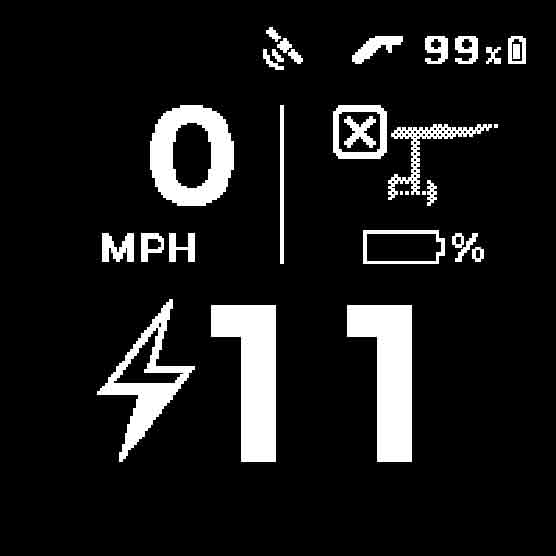
Appears when the connection between the eFoil and hand controller is weak or has been disconnected. The visual indicator on this screen (indicating the eFoil is not connected to the LHC) is the eFoil icon and ‘X’ found on the top right side of the screen.
Move the LHC closer to the board or restart the pairing process to reconnect.
TILT:
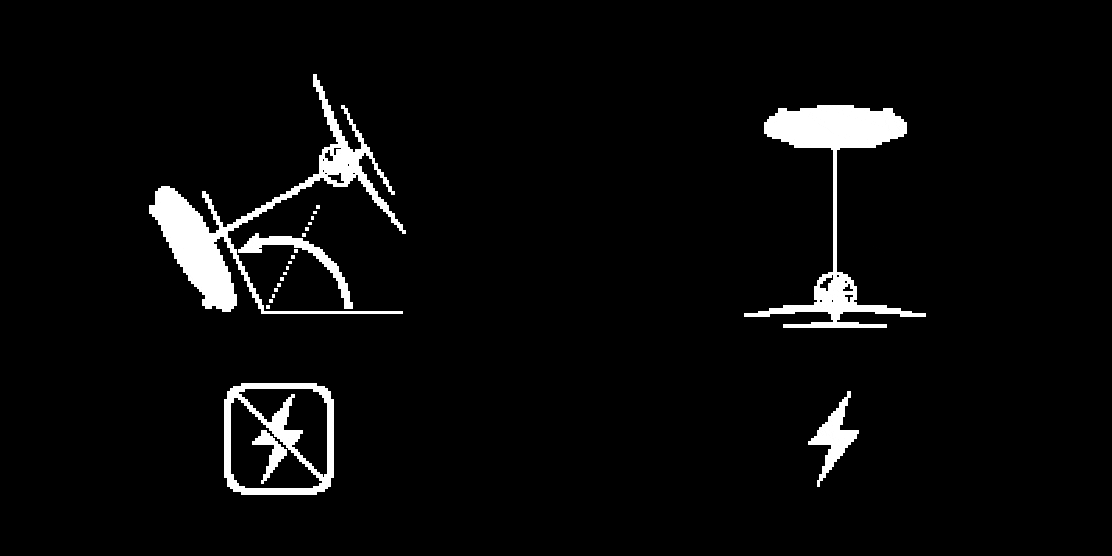
Appears when the board reaches a severe tilt angle. When this appears, the motor will be disabled for safety. This screen will remain displayed until the board is no longer positioned in an extreme angle.
To re-enable the motor, the board must be at an upright angle, and the trigger cannot be pressed.
EFOIL LOW BATTERY:
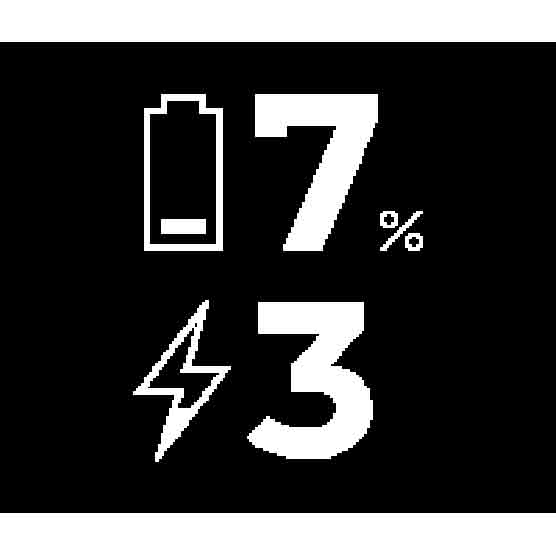
VIBRATION: The LHC will vibrate one time when this screen is triggered.
Appears when the eFoil battery is at or below 7% state of charge (SOC). The battery will automatically enter into Limp Mode 1, which means it will reduce the power output from the battery to preserve charge.
Return to shore and recharge the eFoil battery.
See the LIMP MODES section of this user manual for more details on the LHC’s limp modes.
EFOIL CRITICAL LOW BATTERY:
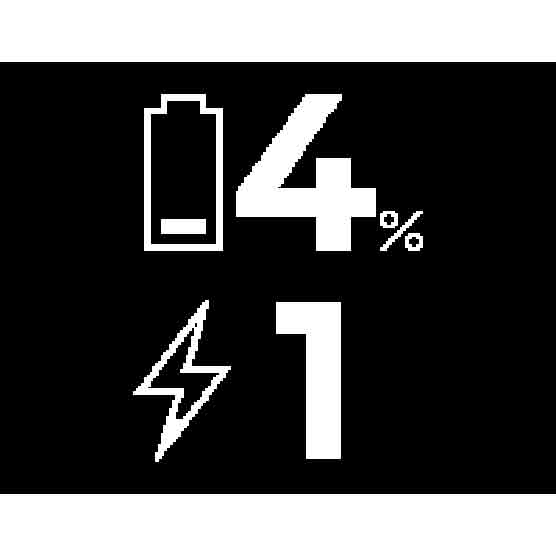
VIBRATION: The LHC will vibrate three times when this screen is triggered.
Appears when the eFoil battery is at or below 4% state of charge. The battery will automatically enter into Limp Mode 2, further reducing power output from the battery to preserve charge.
Return to shore immediately.
See the LIMP MODES section of this user manual for more details on the LHC’s limp modes.
HAND CONTROLLER LOW BATTERY:
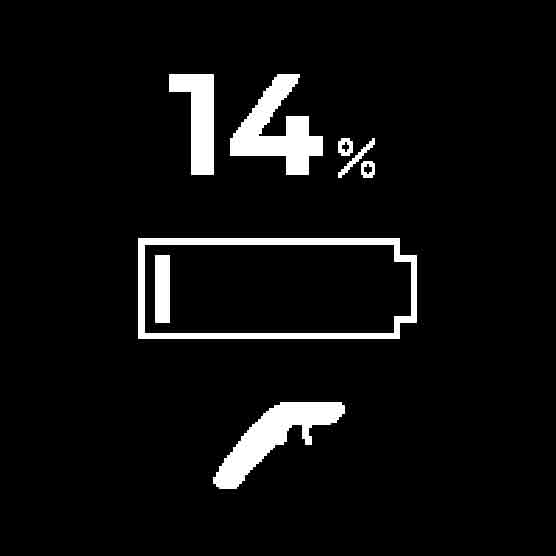
Appears when the hand controller battery is at or below 20% state of charge.
Return to shore and recharge the LHC as soon as possible.
UPDATING FIRMWARE:
Appears when the hand controller is in update mode or firmware is updating. Do not power down the hand controller if the propeller icon is spinning, or the update may fail.
WARNING SCREENS
EFOIL BATTERY OVER TEMPERATURE:
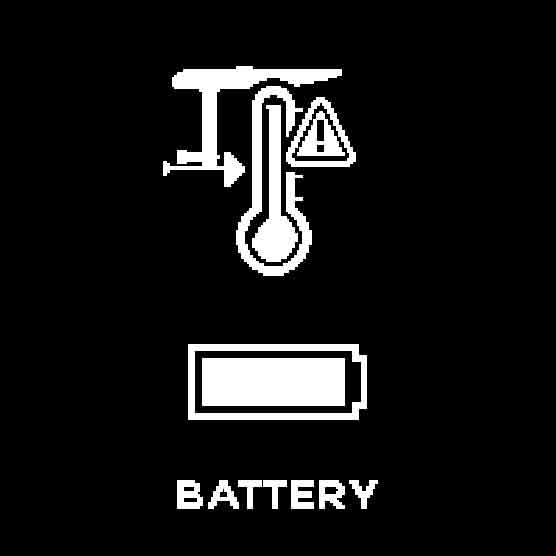
VIBRATION: The LHC will vibrate three times when this screen is triggered.
Appears when the eFoil battery is too hot. If you are riding at a high speed when this screen appears, it will slowly reduce to zero.
Reduce power and/or move the eFoil (and eFoil battery) to a cooler environment.
EBOX OVER TEMPERATURE:
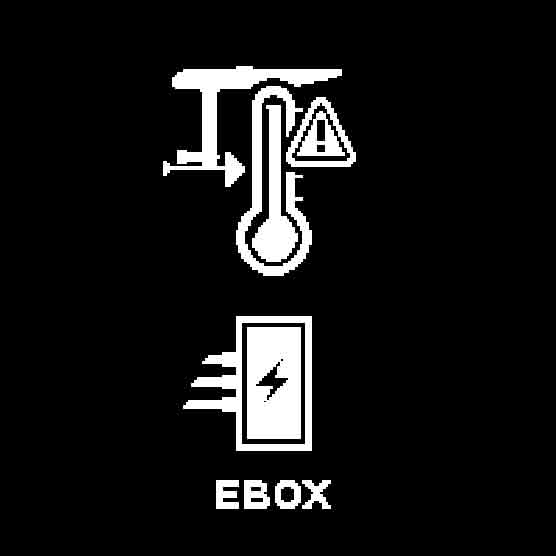
VIBRATION: The controller will vibrate three times when this screen is triggered.
Appears when the eBox is too hot. If you are riding at a high speed when this screen appears, the eFoil will slowly reduce speed to zero.
Ensure the water lines are properly connected, free flowing, and clear with no obstructions (such as dirt, grass, seaweed).
ELECTRICAL CONTACTS OVER TEMPERATURE:
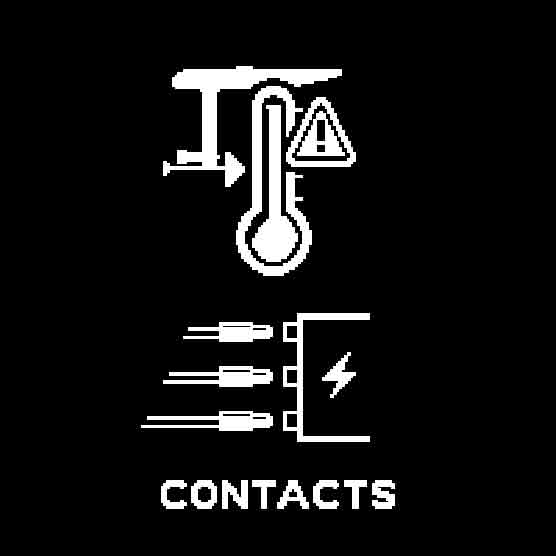
Appears when the plugs are too hot. The trigger will not engage the motor until this is addressed.
Ensure all three plugs are fully seated/installed.
NOTE: This screen is only applicable to LIFT4 and previous generation eFoils.
OVER CURRENT:
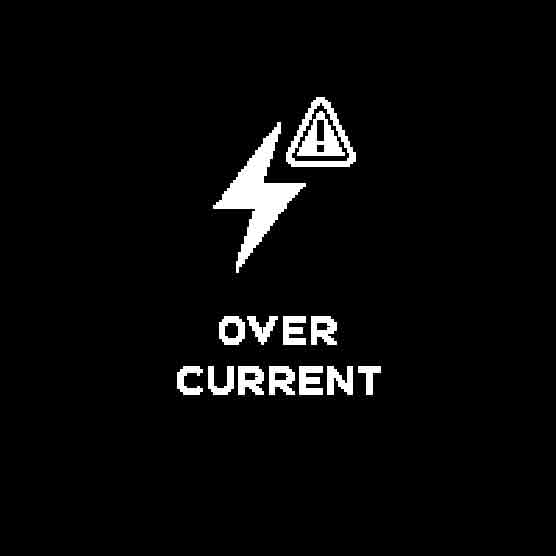
VIBRATION: The controller will vibrate three times when this screen is triggered.
Appears when there is too much current being drawn from the eFoil battery. The eFoil will be disabled until you return to a lower power draw on the battery.
55MM MOTOR PROTECTION:
VIBRATION: The controller will vibrate three times when this screen is triggered.
This warning screen will display if the 55mm motor (which comes standard on LIFTX eFoils) is being pushed too hard for too long, triggering a temporary cool-down timeout period to protect the motor.
The timeout period lasts ~30 seconds. This screen will display through the timeout period, clearing once the 30 seconds has elapsed, indicating the trigger/motor can be engaged. Full power will be returned once the cool down period is over.
Release the hand controller trigger to reset the eFoil board to zero speed.
TRIGGER SENSOR:
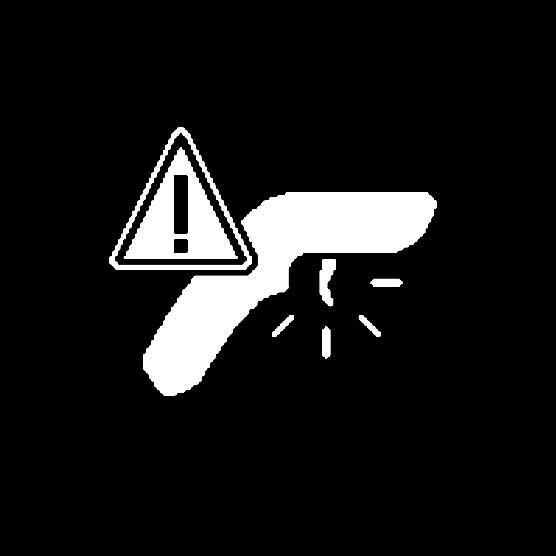
VIBRATION: The controller will vibrate three times when this screen is triggered.
Appears when the trigger is detected to be in an abnormal position. When this appears, the motor will be disabled for safety.
The trigger must be in its neutral position at start up before engaging the motor.
LIMP MODES
To protect both the rider and the eFoil system, your Lift eFoil features automatic Limp Modes that engage as the battery reaches low charge thresholds. These safety functions provide limited power output when the battery SOC is low, to ensure you can return to shore safely, while protecting the battery from deep discharge.
How You’ll Know You’re in Limp Mode:
- Reduced Power Output: You will feel a noticeable drop in throttle response and speed.
- Controller Display: The LHC will display the EFOIL LOW BATTERY or EFOIL CRITICAL LOW BATTERY screen, depending on the battery SOC.
- Vibration Alerts: The controller will vibrate when each limp mode is engaged.
LHC LOW & CRITICAL BATTERY DISPLAYS:
Limp Mode Activation Levels
Your Lift eFoil has two stages of Limp Mode, each corresponding to the eFoil battery’s remaining charge:
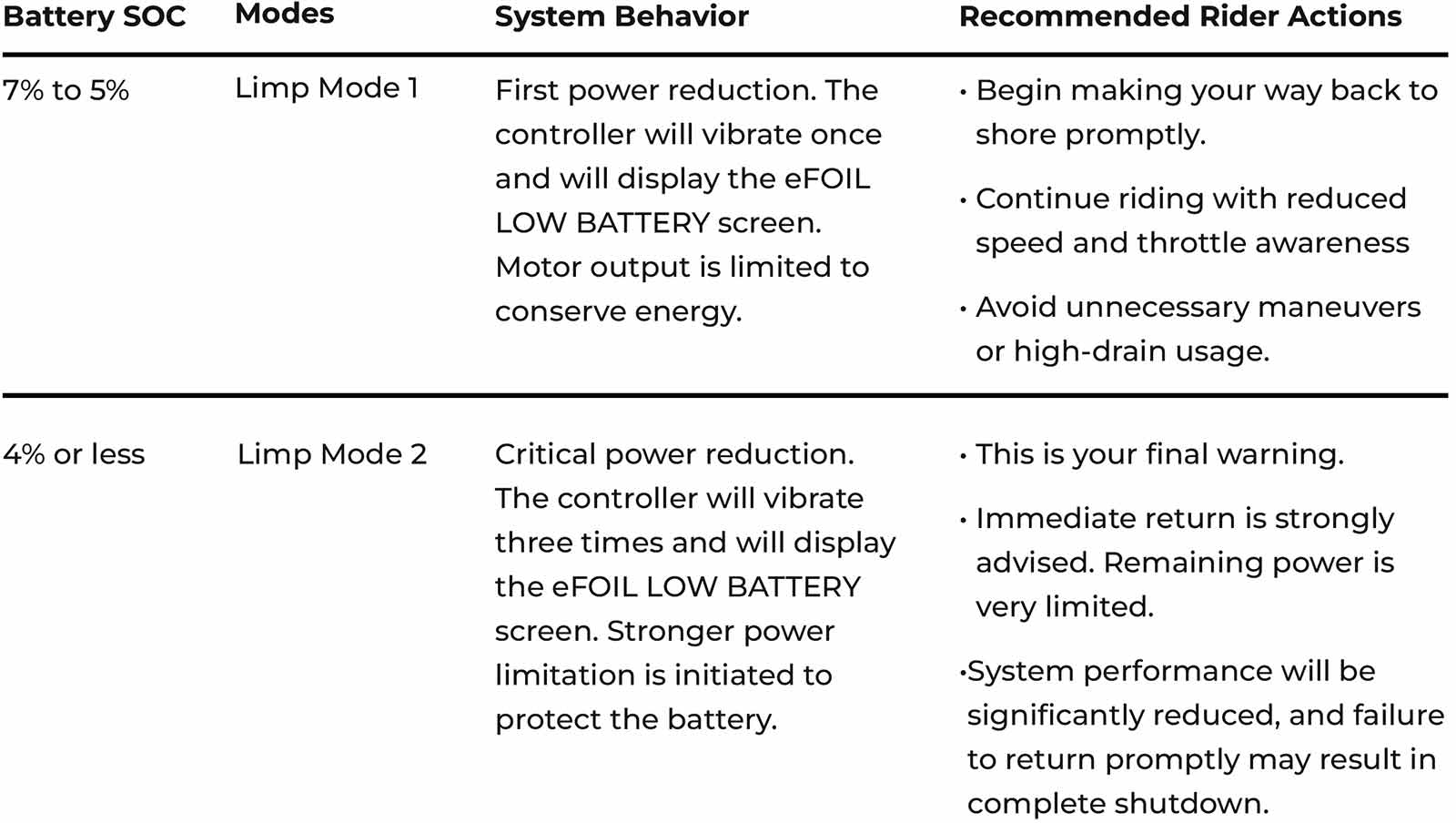
Once the eFOIL LOW BATTERY or eFOIL CRITICAL LOW BATTERY is displayed on the hand controller screen, it will remain on the screen. It can be cleared with a button press.
Important Safety Tips
- Plan Conservatively: Do not rely on Limp Modes for routine operation. They’re designed as safety margins, not operational ranges.
- Do Not Power Cycle: Turning the board off and on while in Limp Mode may further limit remaining power.
- Ride Smart: Avoid straying far from shore or engaging in extended high-drain activity when your battery is below 20% SOC.
Post-Ride Instructions
- Charge Immediately: Once on shore, power down and connect your battery to the charger as soon as possible.
- Avoid Frequent Depletion: Repeatedly entering Limp Modes, especially Limp Mode 2, may shorten overall battery lifespan.
NOTE: If the battery drops to 0% SOC, the board will automatically power down, and all propulsion will stop. You will need to manually paddle or tow the board to safety.
FACTORY RESET
NOTE: Performing a factory reset will reset measurement units (from metric to imperial units), total distance, etc., to the default factory settings.
To perform a factory reset, navigate to the Settings screen by pressing and holding the Select button for 3 seconds. Navigate to the About screen, and then use the Down arrow to the Factory Reset icon. Press Select to hit Yes to initiate the factory reset.
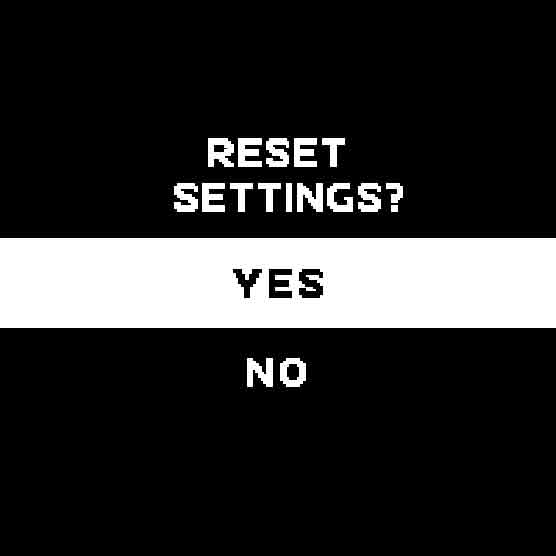
Once you select Yes, the hand controller will power down. The reset may take several minutes to complete. Once the reset is complete, the LHC may power down. Simply power back on and use as normal.
Once powered back on, the LHC will be set to its factory settings.
STORAGE & MAINTENANCE
When you are finished eFoiling, always turn off the hand controller before dismounting your board or attempting to take the board out of the water.
NOTE: The LHC will vibrate once while powering down.
RINSE & DRY
- Rinse the hand controller in fresh water after each use.
- Actuate the trigger while continuously flushing with water to remove any saltwater, sand, or grit.
- Thoroughly rinse the charging port contacts, removing saltwater and grit.
- Remove any excess water and dry with a clean towel.
STORE
- When fully dried, place the hand controller in the provided protective case when not in use.
- Store the case in a cool, dry location, keeping it out of direct sunlight whenever possible. UV and excessive heat exposure can cause permanent damage and may void the warranty.
- Ideal Storage Temperature Range: 32-86°F (0-30°C)
- Acceptable Storage Temperature Range: 14-104°F (-10-40°C)
NOTE: Storing the hand controller outside of the ideal storage temperature range will cause the battery to drain faster.
INSPECT, CLEAN, MAINTAIN
- The electrical contacts and metal components are critical elements to maintain on the hand controller. Scratches, salt water, corrosion, and any other damage to the electrical contacts and metal components can cause rapid degradation and will lead to system failure. To maximize their performance and longevity, they require ongoing maintenance.
- Inspect the charging contacts and metal hardware. Corrosion can cause damage to these components, which can lead to equipment malfunctions or failure. Check for moisture buildup or corrosion on all contacts and metal hardware. If you see corrosion, use an electrical contact cleaner to remove it.
To prevent corrosion, apply ReelX oil on the various electrical contacts and metal hardware on the LHC at least once a month (and more often with frequent use). ReelX is designed to prevent rust and corrosion.
The charging points should be regularly inspected and maintained with ReelX:
TROUBLESHOOTING
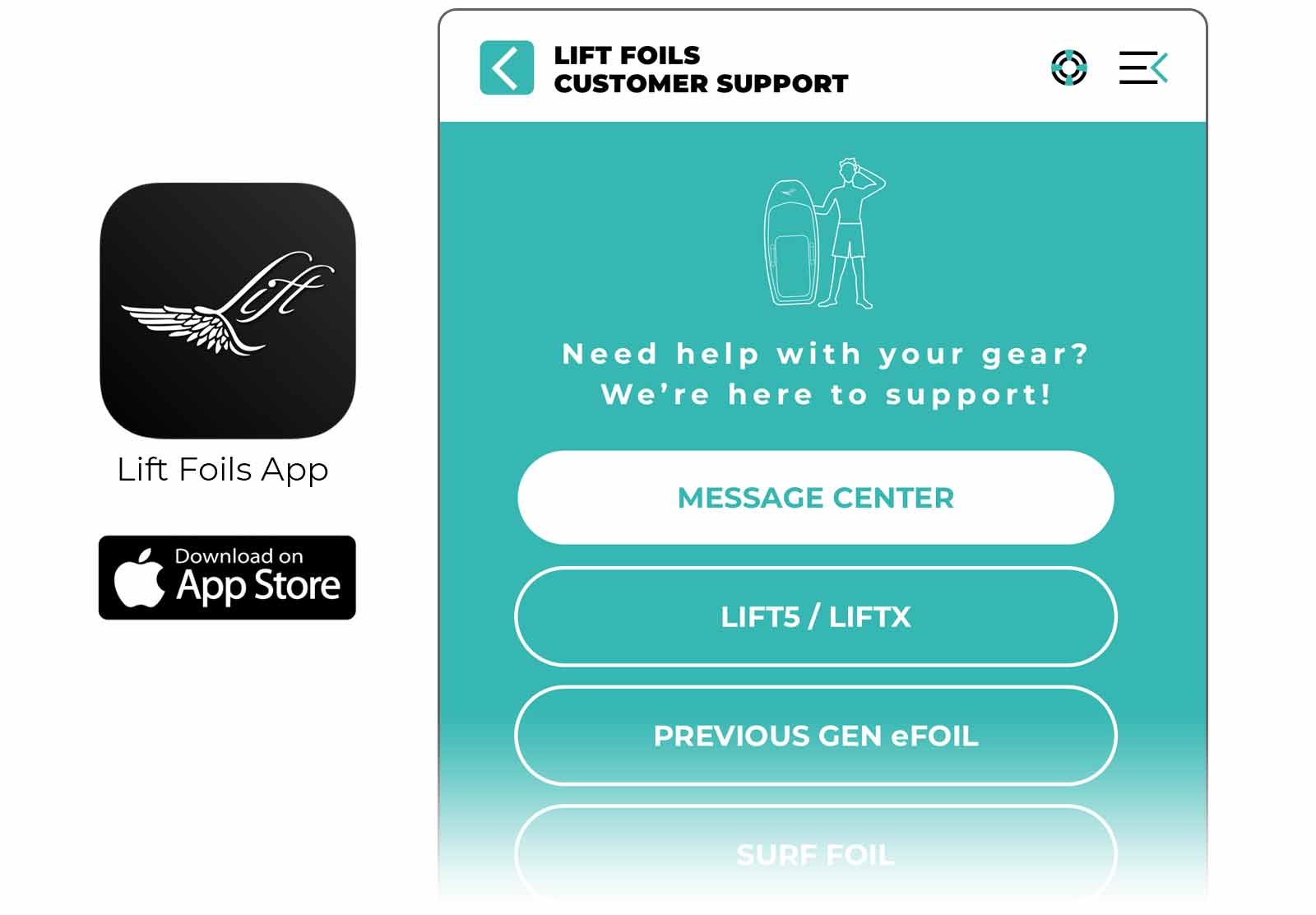
For the best experience troubleshooting your gear, please use the Lift Foils App.
CONTACT
When you purchase Lift Foils products, you are investing in a lifetime of customer care, new technology, and new frontiers. If you have questions about your Lift eFoil, accessories, or other gear, please contact us.
For customer support and troubleshooting with your eFoil, use the Lift Foils app.
For further technical support, product questions, or new orders:
- Call: +1 (888) 333-3045
- Email: orders@liftfoils.com
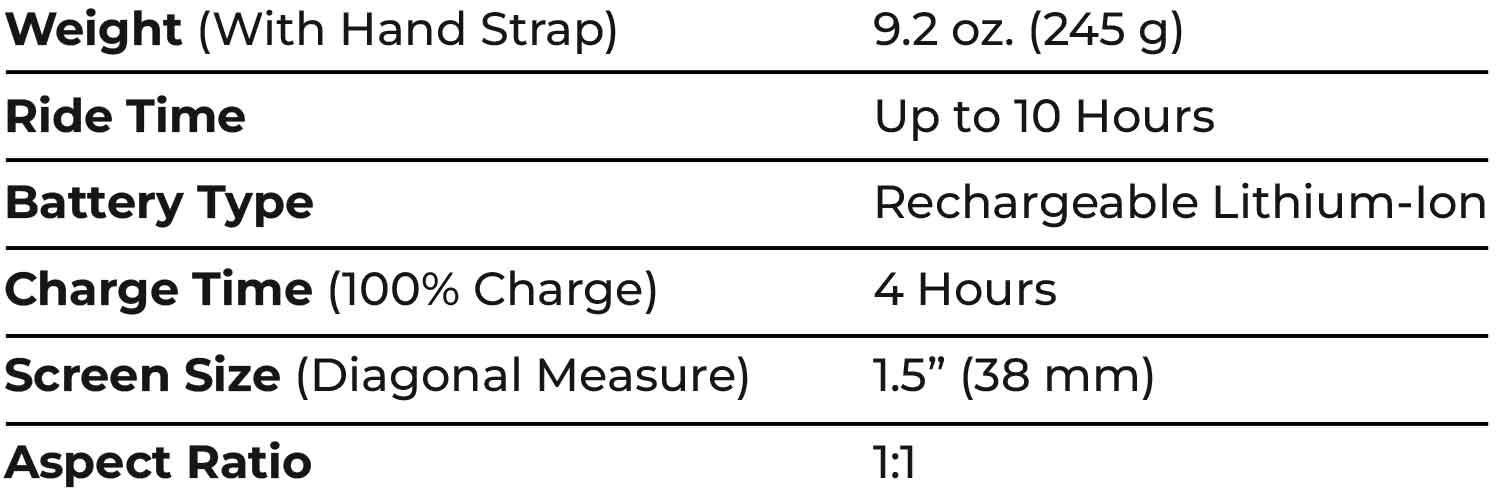
TECHNICAL SPECIFICATIONS
REGULATORY INFORMATION
LHC Serial Number Information:
Each Lift Hand Controller comes with a unique serial number (AKA: traceability code) printed on the controller. The serial number is located under the rubber flap found on the underside of the hand controller above the trigger (the same location as the charge port). This serial number may be required if you contact Lift Customer Support.
Accessing Certification Information on the LHC:
You can access the Lift Hand Controller (LHC) certification information in the Settings menu. Press and hold the Settings button for 2 seconds. Press the Down arrow to scroll to the About icon, and press the Select button. Once on the About screen, you can scroll through the certification information by pressing the Down or Up buttons on the LHC.
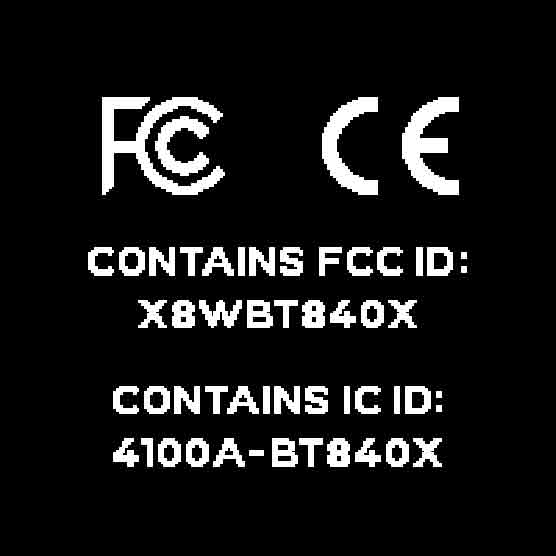
This device complies with part 15 of the FCC Rules and meets Innovation, Science and Economic Development Canada’s (ISED) rules (RSSs) for low-power devices, allowing it to operate without a special license.
Operation is subject to the following two conditions:
- This device may not cause harmful interference, and
- this device must accept any interference received, including interference that may cause undesired operation.
This product contains a lithium-ion battery and must not be disposed of with household waste. Take the product to a designated collection point for recycling waste electrical and electronic equipment (WEEE).
Company Information:
MHL Custom Inc [DBA: Lift Foils]
PR-459 Km. 0.5
Street D Lot 30 and 49 Montaña Ind. Park
Aguadilla, Puerto Rico 00603